
- Withdrawing permission...
1.1 Withdrawing permission in the MyAgroVision application of the organization
1.2 Withdrawing permission in the MyAgroVision application of the farmer - Removing permission from Lely Horizon
- Disabling the AgroVision DataGrabber
1. Withdrawing permission
1.1 Withdrawing permission in the MyAgroVision application of the organization
The permission that was granted by the farmer can be removed by the organization that asked for permission. To do so, login to My.AgroVision.com with the credentials of the administrator of the organization.
Step 1
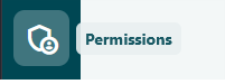
Go to Permissions.
Step 2
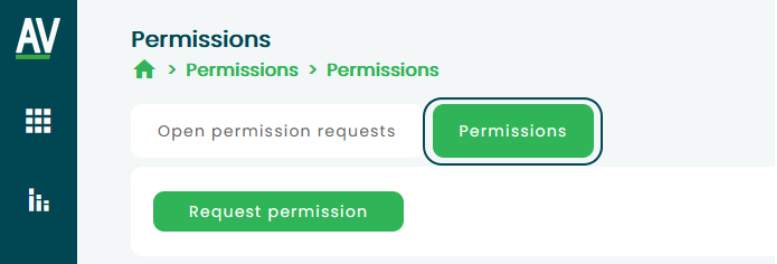
Choose on top of the page for Permissions.
Step 3

Click on show Permissions (1) and on the permission that must be removed (2).
Step 4

Confirm that you want to remove the permission by clicking OK.
From now on, your organization and her employees will no longer have access to the data of this farm.
1.2 Withdrawing permission in the MyAgroVision application of the farmer
The permission that was granted by the farmer can also be removed by the farmer who provided permission to share data with the organization. To do so, the farmer can login to My.AgroVision.com with his own credentials.
Step 1
Go to Permissions.
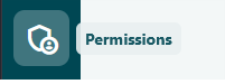
Step 2

Click on Show Permissions (1) and on the permission that must be removed (2).
Step 3
Confirm that you want to remove the permission by clicking on OK.

From now on the organization, to which permission was given, and her employees will no longer have access to the data of this farm.
2. Removing permission from Lely Horizon
To share data from Lely Horizon with an organization in Dairy Analytics a permission in Lely Horizon is needed besides the permission in MyAgroVision. Even though AgroVision will not be picking up data from the farm anymore after deleting the permission in MyAgroVision the farmer might also want to delete the permission in Lely Horizon by following the next steps.
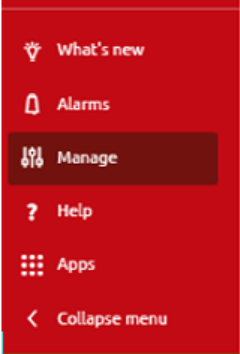 Click on Manage in the left menu in the Lely Horizon.
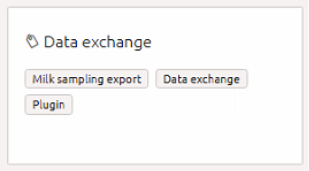 Go to System and click on Data Exchange.
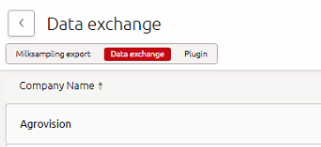 Click on the Company name you do not want to allow to receive data anymore.

- Change the setting that the organization is allowed to exchange data from Yes to No and confirm by clicking on Apply changes at the bottom of the window.
- The company should now be removed from the list.
3. Disabling the AgroVision DataGrabber
Once the permission to share the data from the farm with an organization has been removed in MyAgroVision, the organization will not have access to the data anymore. For robots and other process computers other than Lely, the AgroVision DataGrabber will keep sending data to the AgroVision Dairy Analytics database even though no one has access to the data in Dairy Analytics anymore.
If the data in AgroVision Cows or Dairy Analytics are no longer needed for any other purpose (such as AgroVision Cows) and the farmer wishes to stop sending data, the AgroVision DataGrabber can be disabled following the standard Windows procedure.
To uninstall a program in Windows 11, you can follow these steps:
1. Open ‘Settings’
- Click on the Start button (the Windows logo) on the taskbar.
- Select Settings (the gear icon) from the Start menu.
2. Navigate to Apps
- In the Settings window, click on Apps from the left sidebar.
3. Access Installed Apps
- Under the Apps section, click on Apps & features. This will show you a list of all installed applications.
4. Find the Program to Uninstall
 Scroll through the list or use the search bar to find the AgroVision program you wish to uninstall.
5. Uninstall the Program
- Once you locate the program, click on the three dots (⋮) next to it.
- Select Uninstall from the dropdown menu.
- Confirm the uninstallation by clicking Uninstall again in the prompt that appears.